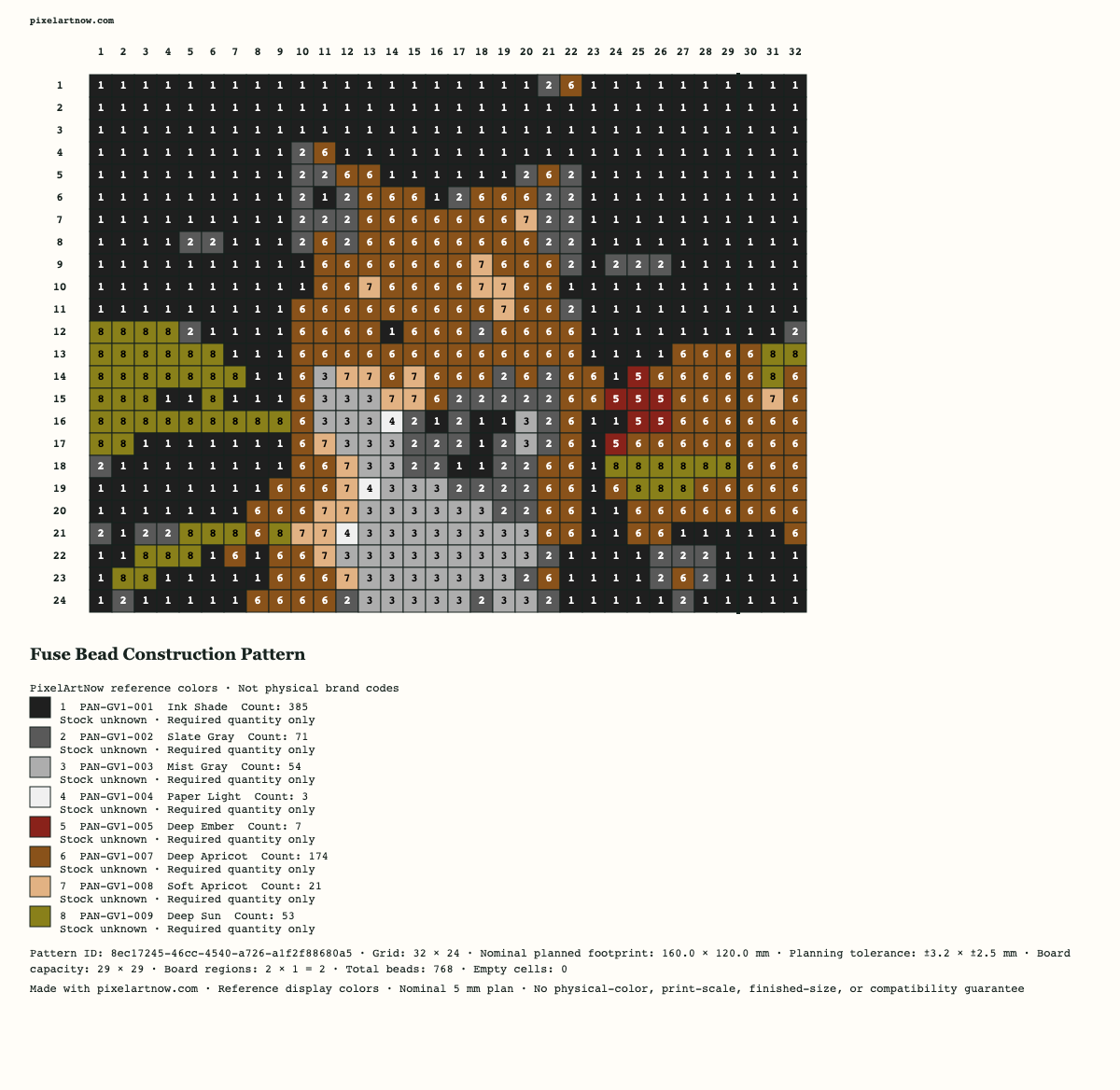
Construction PNG
A build reference with every cell, symbol, coordinate, board boundary, material legend, count, and planned footprint.
 PixelArtNow
Generic fuse bead construction planner
Turn one image into an editable fuse bead pattern. Review material counts, a nominal 5 mm footprint, generic pegboard regions, and matching PNG, PDF, and CSV exports.
A bead pattern maps each occupied cell to one planned bead. Create an editable bead pattern from a photo, review color quantities and board regions, then download matching PNG, PDF and CSV plans.
By PixelArtNow · Updated · Contact
Choose one image and confirm that you may use it.
Save edited cells, colors and settings on this browser or in a project file. Original images, filenames and undo history are not saved. Clearing browser data removes local drafts; files work on another device.
Making marks and their saved pattern version are included when present. Marks do not change required materials or deduct stock.
Checking for a local draft…
4. Export the current construction plan
Each download is generated from the same current pattern. The PNG and PDF include a PixelArtNow.com credit for easy sharing.
A build reference with every cell, symbol, coordinate, board boundary, material legend, count, and planned footprint.
Printable construction pages with symbols, board overlays, a material summary, and a 50.0 mm calibration bar.
A UTF-8 material table with one row for each used color, count, size, and board-plan field.
A bead pattern maps each occupied grid cell to one planned bead. PixelArtNow creates an editable fuse bead pattern from an image, with color quantities, board regions and matching printable files. A bead pattern is a planning reference; physical color, fit and print scale need your own checks.
Free to use. No account required. Images are processed on your device. See our privacy policy for website analytics and saved-project details.
By PixelArtNow · Updated · Contact
PixelArtNow tool settings and examples document the current implementation; they are practical starting points, not independently validated quality benchmarks. PNG supports lossless raster storage and an optional alpha channel, as specified by the W3C PNG specification. The HTML canvas standard describes image smoothing and nearest-neighbor scaling when smoothing is disabled. These references explain file formats and rendering; they do not certify physical materials, print accuracy or secure redaction.
For bead planning, quantities come from occupied cells and footprint estimates use the tool’s stated 5 mm pitch. Compare downloaded files with the current grid and measure the calibration bar before construction. Read our content review method.
Practice before using your own image
These steps use the built-in fox sample: 32 × 24 cells, maximum 16 reference colors, no dithering, no crop or rotation, 29 × 29 board capacity and Letter paper. The initial result uses 10 colors and 768 non-empty cells across two board regions. These are sample counts, not a promise for another image.

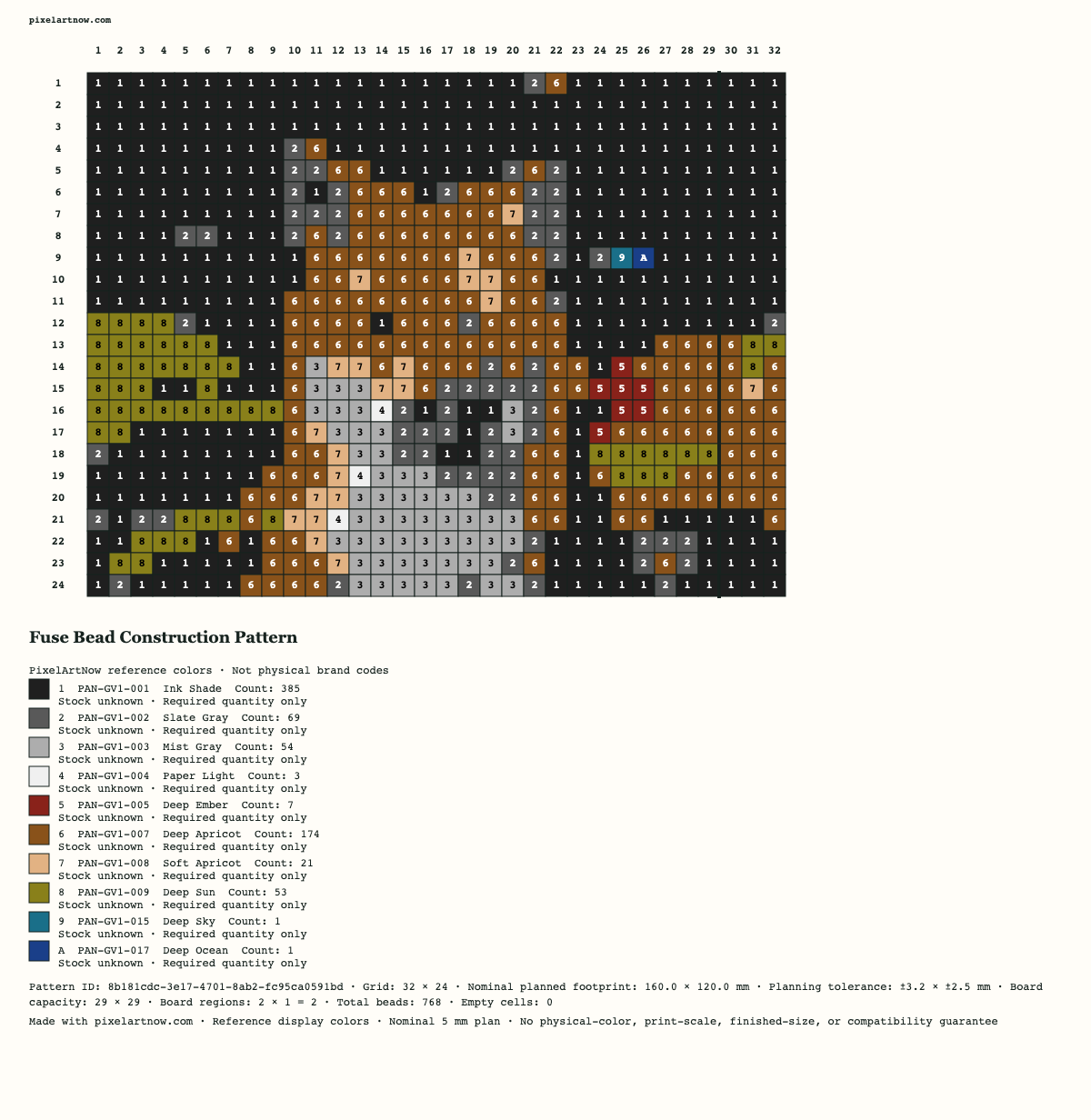
Download the sample source · Download its editable project. Importing a project restores its edited grid, not its source image. Reference colors and codes do not identify a physical brand or guarantee a material match.
Start with the fox result above. Its PAN-GV1-015 and PAN-GV1-017 reference colors each appear in one cell. Inspect those cells before deciding whether their detail matters.
Limit: a nearest display-color suggestion is not a measurement of your beads. Compare physical materials yourself. For your own material labels and HEX values, use the next tutorial; disabling a used color in the Materials draft follows a preview-and-apply flow.
Review a replacementIn the unedited fox sample, 32 columns × 24 rows with a 29 × 29 capacity creates two regions: a 29 × 24 region and a 3 × 24 edge region. Board regions describe abstract cell capacity, not a tested physical board fit.
Limit: the generic 5 mm pitch gives a nominal 160 × 120 mm footprint for this sample, with the stated planning tolerance. It does not guarantee a fused size, physical board compatibility or print scale. This guide has not verified your printer; a digital screenshot cannot prove physical calibration. Open the actual sample PDF and download its matching material CSV.
Prepare the board planTo use your own material list, open Materials and choose My material colors. Enter your own unique codes, names and HEX values, enable at least one color and optionally enter stock. Blank stock means unknown; a numeric zero means none available.
Limit: fewer colors can remove important details. Protect outlines or highlights and inspect the full bead pattern before merging. Display HEX values are not physical color verification, and stock entries do not prevent a shortage or place an order. Open the actual 8-color merged PNG to compare it with the initial result above.
Try materials and a merge previewChoose one image you may use, select the bead pattern width and reference-color count, and let the tool build a material-aware bead pattern grid. Empty cells stay empty. Every used cell receives a symbol and reference color before counts and exports become available.
The current profile uses a 5.0 mm center pitch as a planning assumption. Bead pattern width and height come from the number of grid columns and rows, not from a measurement of your materials. Review the visible tolerance and compare the bead pattern with the materials and board you intend to use.
Use the generic 29 × 29-cell preset or enter a custom cell capacity. The overlay divides the bead pattern into abstract board regions and reports partial edges. The bead pattern PDF uses portrait pages, reference overlaps, registration marks, and a 50.0 mm calibration bar.
Counts come from the current bead pattern grid. Each used reference color has a symbol, code, name, and count so you can check the bead pattern before exporting.
Paint, pick, or empty individual bead pattern cells. If you disable a used reference color, choose an enabled replacement before the grid changes. One confirmed replacement is one undoable action, and exports stay locked until symbols and counts match the latest grid.
The construction PNG, printable PDF, and material CSV come from one current pattern. Their symbols, codes, counts, dimensions, and board plan agree. Keep all files together when you build or share your plan.
Reference display colors can look different across screens, printers, inks, paper, materials, batches, placement, and heat. Nominal dimensions do not promise an assembled or fused result. Generic board regions do not establish fit or compatibility. Measure the 50.0 mm calibration bar on the printed PDF before using it as a physical guide.
Choose one PNG, JPEG, or WebP that you own or may use. Choose PixelArtNow reference colors or enter your own material HEX values, codes and names. The tool converts using enabled colors, builds an editable bead pattern grid, calculates material counts, and prepares a nominal footprint, board-region plan, and matching construction exports.
The bead pattern tool counts every non-empty cell in the current bead pattern grid and reports a total plus one count per used reference color. These counts do not include waste, breakage or spares. Optional stock entries show a planning shortage against required counts; blank stock remains unknown and stock is never deducted.
The Generic 5 mm planning profile multiplies grid columns and rows by a 5.0 mm center pitch. The result is a nominal estimate with a visible planning tolerance, not an exact assembled or fused size.
Choose a generic cell capacity, such as 29 × 29. The bead pattern planner divides the grid into board regions, labels their positions, and reports partial edge regions. It does not claim fit or compatibility with a physical board.
Yes. Open Materials to enable reference colors or enter your own material HEX values, names, codes and optional stock. Review the before/after preview before applying changes. Conversion, editing and dithering previews use the enabled collection; material changes can be undone. User colors are not physically verified.
Open Merge small color counts. Protect important details with Keep color, request suggestions or choose enabled replacement colors, then review the bead pattern and quantities before applying. One undo restores the entire merge. Stock is not deducted; display-color suggestions do not guarantee a physical material match.
Yes. Start making opens a read-only board view with symbols, material highlights, zoom and per-board color checklists. Marks save with your local project and do not change the pattern, export counts or stock. After edits or board changes, you can view the previous making version or explicitly restart progress for the current bead pattern.
Yes. Disable the used reference color, then choose an enabled replacement or the automatic nearest enabled reference color. The bead pattern tool updates affected cells, symbols, and counts before exports are available again.
No. They are reference display colors. Materials, batches, displays, printers, ink, paper, placement, heat, and pressure can change the visible result.
Yes, after the latest bead pattern is ready. Download a construction PNG, a portrait printable PDF with a 50.0 mm calibration bar, and a UTF-8 CSV with used-color counts and traceability fields.
No. Print at 100% / Actual size and measure the 50.0 mm calibration bar. Browser, driver, printer, paper, and scaling settings can change output size.
It is a generic fuse-bead construction planner. It does not model seed beads, pony beads, loom geometry, jewelry patterns, or material-specific assembly techniques.
No. The current profile uses generic planning assumptions and abstract board-cell capacities. No brand, material, or board compatibility is claimed.
The current tool is free to use, requires no account, and requires no payment. This describes the current service and is not a promise about every future feature.
Use only images you own or have permission to transform, reproduce, and download. The tool does not grant rights to copyrighted works, trademarks, private content, or another person’s likeness.
The bead pattern editor can keep one draft on this browser and download a project file containing edited cells, colors and settings. Original images and undo history are not saved. Reset keeps the saved draft; Delete saved draft removes it. Browser clearing, eviction or failures can remove drafts, so keep project files for copies you control. There is no cloud sync.