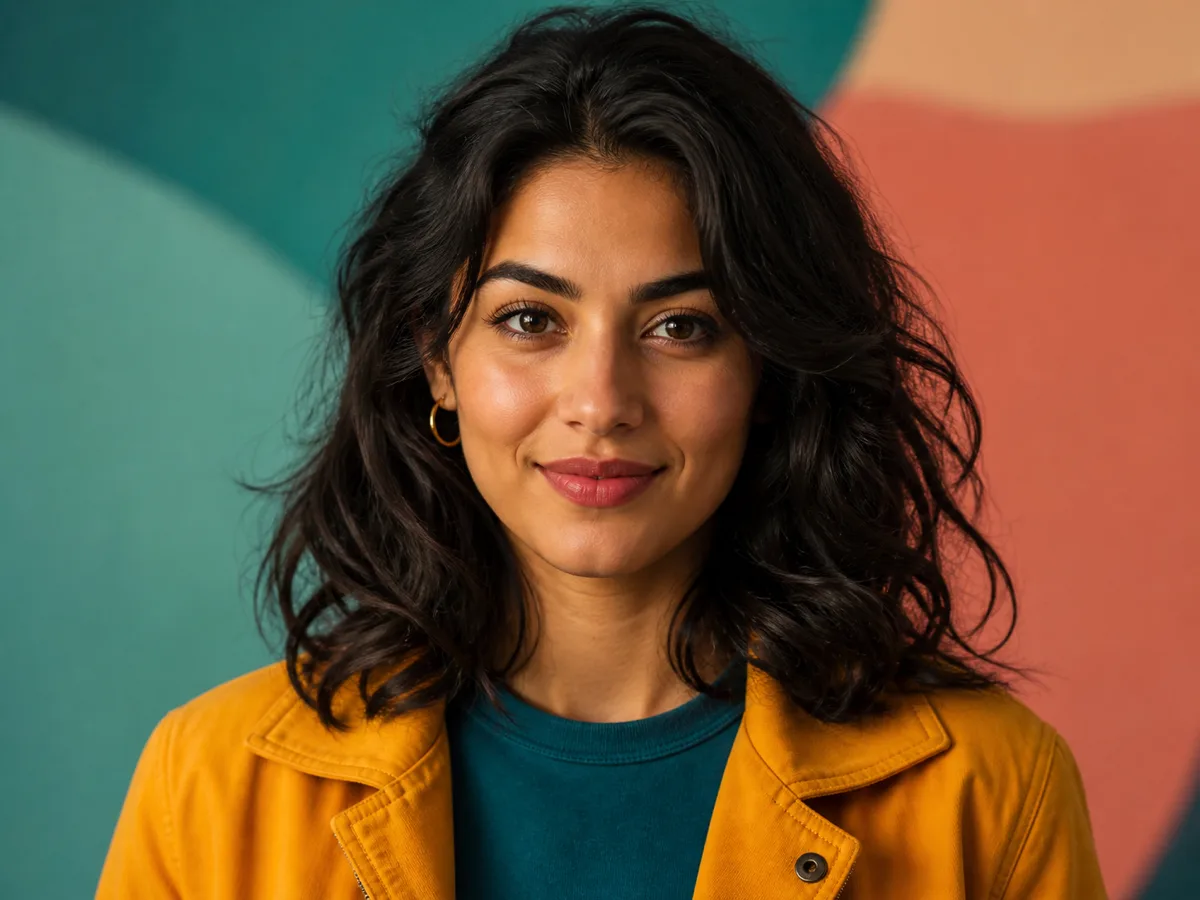
Portrait conversion
Fine hair, skin tones, and a bold jacket make palette reduction easy to spot.
 PixelArtNow
Editable image to pixel art maker
Use this image to pixel art converter to turn a photo or illustration into a deliberate pixel grid and limited palette. Adjust the grid, colors, and dithering, refine individual cells, then export your image to pixel art as a PNG or printable pixel-pattern PDF.
Read the conversion and export guidesOne PNG, JPEG, or WebP · Up to 15 MiB · Up to 8192 × 8192 px and 40 megapixels
Your image is processed on your device. No image uploads or cloud storage.
Image to pixel art converts a photo into an editable grid with a limited palette. Choose grid size and colors, refine individual cells, and download PNG or a numbered PDF reference.
By PixelArtNow · Updated · Contact
One PNG, JPEG, or WebP · Up to 15 MiB · Up to 8192 × 8192 px and 40 megapixels
Edited cells and settings can autosave on this browser. Original images are not saved. Manage your local project.
Choose the original image to prepare a new conversion. Saved cells can still be edited and exported.
32 columns, 12 colors, no dithering. Crop around the subject first. Settings remain editable.
Preview the current size and color limit with and without dithering. Your edits stay until you choose a result.
Choose an original image to generate new results. Restored cells stay editable and exportable.
Select a color, then paint or drag across cells. Changing a palette color remaps the result and updates the PDF legend.
Undo and redo keep the 20 most recent edit actions.
Use Paint, Pick color, or Erase. Keyboard users can move through the grid and apply the selected action to the focused cell.
Download the current image to pixel art result. PixelArtNow adds no watermark.
A raster image to pixel art output. The preview grid overlay is excluded unless the export control explicitly includes it.
A US Letter pattern with a grid, stable color numbers, and an RGB/hex palette legend. Large grids may continue across pages.
The PDF is not a vector file, bill of materials, material-quantity guide, or production-color guarantee.
Save edited cells, colors and settings on this browser or in a project file. Original images, filenames and undo history are not saved. Clearing browser data removes local drafts; files work on another device.
Checking for a local draft…
Image to pixel art converts a photo into an editable cell grid with a limited palette. PixelArtNow runs image to pixel art on your device: choose a grid, refine cells, and download PNG or a printable reference PDF.
Free to use. No account required. Images are processed on your device. See our privacy policy for website analytics and saved-project details.
By PixelArtNow · Updated · Contact
PixelArtNow tool settings and examples document the current implementation; they are practical starting points, not independently validated quality benchmarks. PNG supports lossless raster storage and an optional alpha channel, as specified by the W3C PNG specification. The HTML canvas standard describes image smoothing and nearest-neighbor scaling when smoothing is disabled. These references explain file formats and rendering; they do not certify physical materials, print accuracy or secure redaction.
For bead planning, quantities come from occupied cells and footprint estimates use the tool’s stated 5 mm pitch. Compare downloaded files with the current grid and measure the calibration bar before construction. Read our content review method.
A useful image to pixel art conversion does more than shrink or blur an image. PixelArtNow maps the source onto a deliberate cell grid and limited palette, then lets you correct individual cells before export.
A smaller grid produces larger, simpler blocks. A larger grid keeps more of the source shape and detail. Start at 32 cells across, then adjust within the 16–128-cell range for your image to pixel art result.
Fewer colors create a tighter, more graphic result. More colors preserve extra shading. Start at 16 colors and reduce the count when you want stronger separation in the image to pixel art preview.
None produces cleaner color regions. Floyd–Steinberg distributes color error across nearby pixels, which can make gradients look smoother but may add visible texture to your image to pixel art pattern.
PNG and WebP transparency can be preserved or replaced with a solid background. PixelArtNow does not automatically cut out a subject or create transparency where none exists, so the image to pixel art background stays predictable.
Made with this converter
These results use the same converter as the editor. Select an image, then compare grid size, color count and dithering at your own pace.
Portrait conversion
Fine hair, skin tones, and a bold jacket make palette reduction easy to spot.
Try a complete workflow
Use the built-in portrait to follow these steps. The comparisons above are generated by this converter, rather than painted mockups. Your own photo may need different settings.
Start with the subject filling most of the frame. More grid cells preserve more detail, but also more background texture.
Works best for: a distinct subject and readable contrast. Busy backgrounds, tiny text and faces far from the camera can lose meaning at a small grid; increasing PNG export scale cannot recover that lost detail.
Try the portrait workflowUse the same portrait at 32 columns. Compare 8 and 16 colors before editing. A color limit is a maximum; a simple image may use fewer colors.
Limit: the digital converter derives colors from the image. It does not import a brand material palette or automatically decide which small details should be removed. Use the material workflow for enabled bead colors and quantity-based merges.
Compare colors in the editorGrid dimensions and export scale are different. A 32 × 24 grid at 1× becomes a 32 × 24 PNG; at 4× it becomes 128 × 96. Each cell is copied into a solid square without smoothing.
Limit: scale changes image dimensions, not detail. A printable pixel-pattern PDF serves a different purpose; it is not a replacement for a 1× PNG asset. The bead construction PNG includes labels and material information, so it is not an original-size digital image.
Set the PNG scaleFor image to pixel art, start with a photo that has a clear subject and readable contrast. Choose 32 cells across and 16 colors for a balanced first pass, then reduce the grid for a bolder icon-like result or increase it when the subject needs more detail. Check your image to pixel art result at 100% before editing: a smaller grid should simplify the photo, not preserve every texture.
The image to pixel art converter derives a limited palette from the uploaded image after it has been sampled into grid cells. For image to pixel art, use 4–8 colors when you want a tightly art-directed palette, 12–16 colors for most photos and illustrations, and more only when the extra shading improves the subject. The palette swatches remain editable, so you can simplify a near-duplicate color after conversion.
Automatic conversion is a starting point. Use cell-aligned paint, color picking, and erasing to clean edges or simplify small details in your image to pixel art grid. Undo or redo up to 20 recent edit actions.
Choose PNG for a raster image to pixel art asset. Choose the printable PDF when you need a numbered grid and palette legend on paper.
Export image to pixel art as a PDF when you want to recreate a small sprite, cross-stitch-style reference, classroom exercise, or craft sketch away from the screen. The image to pixel art PDF keeps the numbered grid and palette legend together; print at actual size, compare the legend on paper, and treat the colors as a visual reference rather than a production color specification.
The editable image to pixel art grid can help you prepare a small raster asset, study a palette, or print a reference pattern. PixelArtNow does not currently export sprite sheets, atlas data, vectors, bills of materials, or material quantities.
Choose one PNG, JPEG, or WebP image for your image to pixel art conversion. PixelArtNow creates a default pattern automatically. Adjust the grid, color count, dithering, or background if needed, refine individual cells, then download PNG or a printable PDF.
Start with 32 cells across. Use fewer cells for a simpler, chunkier pattern or more cells to keep extra shape and detail; the current range is 16–128 cells across.
A smaller palette creates stronger color grouping, while a larger palette keeps more shading. Floyd–Steinberg dithering can suggest intermediate tones but may add texture; choose None for cleaner color regions.
Yes. The current tool lets you paint, pick a palette color, erase grid cells, and undo or redo the 20 most recent edit actions.
Yes. PNG provides a raster image. The printable PDF includes a numbered grid and RGB/hex palette legend, but it is not a vector file, bill of materials, material-quantity guide, or production-color guarantee.
The tool accepts one PNG, JPEG, or WebP up to 15 MiB, 8192 px per side, and 40 megapixels. GIF, SVG, HEIC, AVIF, TIFF, PSD, malformed, and zero-byte files are not supported.